I was sitting on my floor last Tuesday, surrounded by a chaotic nest of charging cables and three different laptops, feeling that specific brand of modern-day rage. I just needed to move a single project folder from my tablet to my desktop, but instead, I was staring at a “compatibility error” screen that felt like a personal insult. We’ve been sold this lie that everything is seamlessly integrated in the cloud, but let’s be real: figuring out how to transfer files between devices often feels like trying to solve a Rubik’s Cube while someone screams instructions at you in a different language. It shouldn’t be this hard to just get your stuff from point A to point B.
I’m not here to pitch you a pricey subscription service or a complicated ecosystem that requires you to buy three new gadgets just to make them talk to each other. My goal is to give you the actual, unvarnished ways to move your data—whether that’s via a reliable cable, a quick wireless workaround, or a cloud setup that doesn’t break the bank. We’re going to find the path of least resistance so you can stop wrestling with your tech and get back to your actual life.
Table of Contents
Wireless File Sharing Methods for a Zero Fuss Workflow
If you’re anything like me, the last thing you want to do after a long day of freelance calls is spend forty minutes wrestling with a tangled mess of cords. While a USB cable file transfer is great for massive video files, it’s honestly a bit of a drag for everything else. For my day-to-day, I rely heavily on wireless file sharing methods that just work in the background. AirDrop is a lifesaver if you’re deep in the Apple ecosystem, but since I occasionally have to deal with clients using different operating systems, I’ve had to get smarter about my setup.
I’ve found that the real secret to a zero-fuss workflow is leaning into cloud storage synchronization. Tools like Google Drive or Dropbox act like a digital middleman; I just drop a file into a folder on my laptop, and by the time I’ve made my coffee, it’s sitting there ready on my phone. It’s not about having the most high-tech setup possible, it’s about finding cross-platform file transfer tools that don’t require a manual to operate. If it doesn’t save me time, I’m not using it.
Usb Cable File Transfer for When the Internet Fails
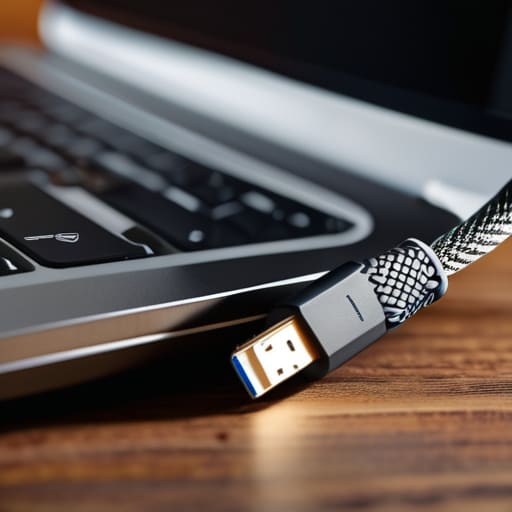
Look, I love a good wireless setup as much as the next person, but we’ve all been there: the Wi-Fi decides to take a nap right when you’re trying to move a massive folder of high-res photos or a video file that’s way too chunky for a quick air-drop. When the signal is spotty or your bandwidth is being throttled, a physical connection is your best friend. A simple USB cable file transfer is the most reliable way to bypass the digital chaos and just get the job done.
If you’re dealing with the headache of transferring data between Android and iPhone, or even just moving files from a tablet to a laptop, plugging in is often faster and less prone to those annoying “connection interrupted” errors. It might feel a little old-school compared to all the sleek cloud storage synchronization options out there, but there is something deeply satisfying about the brute force reliability of a cable. Just grab your cord, plug in, and let the hardware do the heavy lifting so you can move on with your life.
Five Ways to Save Your Sanity While Moving Your Data
- Name your files before you move them. I know, it sounds tedious, but trying to find “IMG_4829.jpg” in a sea of a thousand identical filenames on a new device is a fast track to a headache. Spend thirty seconds renaming things now so you don’t spend thirty minutes searching later.
- Check your storage headroom first. There is nothing more frustrating than a transfer hitting 98% and then crashing because your tablet is actually full. Do a quick sweep of your “Downloads” folder on the receiving device before you even start the process.
- Use a “test file” to verify the connection. If you’re trying a new cloud service or a weird wireless transfer method, don’t start with your entire wedding photo archive. Send one tiny, unimportant PDF first to make sure the pipes are actually working.
- Keep your devices close—literally. If you’re using Bluetooth or local Wi-Fi transfers, don’t try to move files from the living room to the bedroom. Physical distance is the silent killer of stable connections, and it’s not worth the extra troubleshooting.
- Don’t forget the “Source” backup. Even if you’re 99% sure the transfer worked, don’t delete the files from your original device until you’ve actually opened them on the new one. I’ve learned that lesson the hard way more times than I’d like to admit.
## The Goal Isn't Tech Perfection
“At the end of the day, I don’t care if you’re using a fancy cloud service or a dusty old USB cable; if the files are where you need them so you can actually get on with your life, then you’ve won.”
Audrey Lin-McCallum
Getting Your Digital Life in Sync
At the end of the day, there isn’t one “magic” way to move your data; it’s all about choosing the right tool for the job you’re currently facing. If you’re just moving a handful of photos while sitting on the couch, lean into those wireless sharing options to save yourself the hassle. But if you’re staring down a massive folder of video files or your Wi-Fi decides to take an unscheduled nap, don’t fight it—just grab a cable and get the job done manually. The goal isn’t to master every single protocol known to man, but to have a backup plan so you aren’t left staring at a loading bar when you actually have things to do.
I know how it feels when technology starts feeling like another chore on an already overflowing to-do list. It’s easy to let a simple file transfer turn into a frustrating afternoon of troubleshooting, but remember that these little technical hiccups are just small bumps in the road. Don’t let a syncing error ruin your flow or derail your productivity. Once you have these basic systems set up, you can stop worrying about the “how” and get back to the actual work—or better yet, back to enjoying your evening. You’ve got this, and your digital space should serve you, not the other way around.
Frequently Asked Questions
What’s the safest way to move sensitive documents without worrying about them sitting in a random cloud folder?
If you’re dealing with sensitive stuff—think tax returns or legal docs—skip the cloud entirely. My go-to is a physical encrypted USB drive. It’s a “cold” storage method, meaning your files aren’t floating around on a server somewhere. Just plug it in, move the files, and keep that drive in a secure spot. It’s a little old-school, but when it comes to privacy, physical control beats convenience every single time.
Is it actually worth buying a dedicated transfer cable, or should I just stick to the wireless stuff?
Honestly? Unless you’re regularly moving massive 4K video files or working in a dead zone with zero Wi-Fi, skip the dedicated cable. It’s just one more thing to clutter your junk drawer. For most of us, the wireless methods I mentioned are plenty fast enough to get the job done without the extra expense. Save your money for a better notebook or some decent potting soil—you’ll actually use it.
How do I move massive video files or entire photo libraries without my computer turning into a paperweight halfway through?
Look, we’ve all been there—staring at a progress bar that looks like it’s frozen in time while your laptop fan sounds like a jet engine. When you’re dealing with massive video files or a whole library of precious photos, skip the cloud. It’s too slow and prone to crashing. Grab a high-speed external SSD and a decent cable instead. It’s much more stable, and you won’t be stuck waiting for an upload to finish.