I was sitting in a coffee shop last Tuesday, trying to cross-reference a project timeline on my phone, when that dreaded notification popped up: “You have used 90% of your monthly data allowance.” I felt that familiar, sharp spike of annoyance. We’ve all been told that the solution is to buy a more expensive, unlimited plan, but honestly? That’s just a lazy way to solve a problem that we can fix ourselves. You shouldn’t have to pay a premium just because your apps are being greedy in the background. Learning how to save mobile data shouldn’t feel like a full-time job or require a degree in computer science; it should just be about taking back control of your digital footprint.
I’m not here to give you a list of twenty complicated technical tweaks that you’ll forget by tomorrow. Instead, I’ve put together a handful of low-effort, high-impact adjustments that actually work for someone with a busy schedule. We’re going to focus on practical, real-world settings that stop the bleeding without making your phone feel like a brick. My goal is to help you build a system that keeps your connection steady and your bank account intact, so you can get back to your actual life.
Table of Contents
Quick Wins to Reduce Cellular Data Consumption
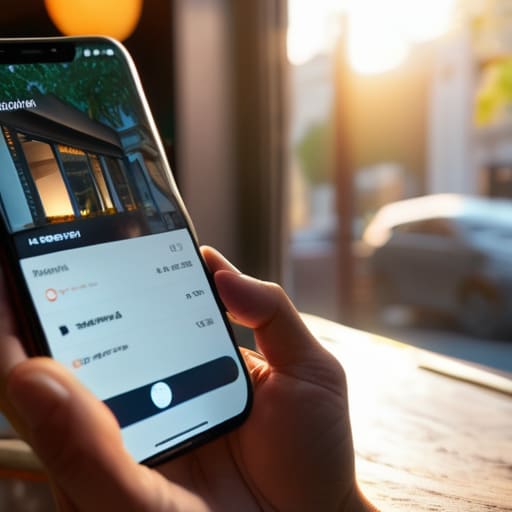
First things first, let’s tackle the low-hanging fruit. You don’t need to be a tech wizard to see an immediate difference; most of the heavy lifting can be done in about thirty seconds through your phone’s settings. I always recommend heading straight for your low data mode settings. Whether you’re on an iPhone or an Android, toggling this on acts like a digital diet for your device—it automatically stops those pesky background processes from eating through your allowance while you aren’t even looking.
Next, let’s talk about the real culprits: those social media apps that seem to have a life of their own. If you want to stop apps from using data without deleting them entirely, go into your individual app settings and disable “Autoplay” for videos. There is nothing more wasteful than scrolling through a feed and having five high-def videos play simultaneously in your pocket. If you’re feeling a bit more proactive, you can also manually limit background data usage for specific apps that you know are data hogs. It’s a small tweak, but it’s a total game-changer for your monthly bill.
Low Data Mode Settings for Your Busy Life
If you’re anything like me, you probably have a dozen different apps running in the background without even realizing it. It’s the digital equivalent of leaving every single faucet in your apartment running; it’s just a massive, invisible drain on your resources. The easiest way to tackle this is to dive into your phone’s actual low data mode settings. On an iPhone, it’s tucked away in your Cellular Data options, and on Android, you’ll want to look for “Data Saver” in your connection settings. Turning this on is a total game-changer because it tells your phone to stop being so “helpful” by downloading updates and syncing photos while you’re out and about.
Once that’s toggled on, I highly recommend taking a quick minute to manually limit background data usage for your most “chatty” apps. I’m talking about the ones that constantly ping you with notifications or refresh their feeds every five seconds. You don’t need Instagram updating its entire cache while you’re sitting in a coffee shop with spotty Wi-Fi. By being a little more selective about which apps are allowed to hunt for data in the background, you’ll significantly optimize mobile internet usage without having to constantly babysit your data meter.
Five Small Tweaks to Stop the Data Bleed
- Check your app update settings. There is nothing more frustrating than waking up to a “data limit exceeded” notification because your phone decided 3:00 AM was the perfect time to download a massive OS update. Set everything to “Over Wi-Fi Only” and let your phone do its thing while you’re actually asleep or at home.
- Audit your social media feeds. Apps like Instagram, TikTok, and Facebook are absolute data hogs because they preload video content before you even scroll to it. If you can, go into the app settings and toggle on “Data Saver” mode—it stops those videos from playing automatically and saves your sanity (and your bill).
- Be picky about your maps. I use GPS for everything, but high-resolution satellite imagery eats through data like crazy. If you know you’re heading into an area with spotty service, download your local map area for offline use while you’re still on your home Wi-Fi. It’s a tiny bit of prep that pays off big time.
- Watch out for “Background App Refresh.” A lot of your apps are working behind your back, constantly pinging servers to update your feed even when your phone is in your pocket. Go into your settings and kill the refresh permission for any app that doesn’t actually need to be live 24/7.
- Use “Lite” versions of your most-used apps. If you find yourself constantly checking email or browsing news on the go, see if there’s a “Lite” version of the app available. They are stripped-down, functional, and designed specifically to work within tight data constraints without the unnecessary bloat.
The Philosophy of Digital Efficiency
“We don’t need to live our lives in offline mode, but we also shouldn’t be paying a premium just because our apps are running background processes we never even asked for. It’s not about restriction; it’s about making sure your data works for you, rather than you working to pay for your data.”
Audrey Lin-McCallum
Bringing It All Together
At the end of the day, saving data isn’t about living like a hermit or avoiding the internet altogether; it’s just about being a little more intentional with how your phone works in the background. Between toggling on that low data mode, being mindful of those massive app updates, and making sure your heavy-duty streaming happens on Wi-Fi, you’ve already done the heavy lifting. You don’t need to monitor every single megabyte like a hawk. Just implement these small, automated tweaks and let your device do the work for you. It’s about setting up a system that actually sticks without adding another chore to your already overflowing to-do list.
I know how it feels when a surprise data overage bill hits your inbox—it’s one of those tiny, modern headaches that can totally derail a productive week. But remember, the goal here isn’t to achieve some perfect, zero-waste digital lifestyle. It’s just about reclaiming a little bit of control over your tech so it serves you, rather than the other way around. Take these steps one at a time, find what works for your specific routine, and stop stressing the small stuff. You’ve got better things to do with your energy than fighting with your settings.
Frequently Asked Questions
Will turning on low data mode mess up my app notifications or important messages?
Honestly, this is the big one, isn’t it? The fear of missing that “we need to talk” text or an urgent work Slack. The short answer: you won’t miss the messages themselves, but there might be a slight delay. Your phone will still prioritize incoming texts and calls, but things like high-res photo previews or background app refreshes might take a beat to catch up. It’s a trade-off, but for most of us, a five-second delay is worth the data savings.
Is it actually worth downloading things over Wi-Fi, or is that just more work than it's worth?
Honestly? It’s absolutely worth it, especially if you’re prone to “accidental” data drains. I used to ignore it, but then I’d realize a single Spotify playlist or a software update had eaten my entire monthly allowance before lunch. Think of it as a tiny bit of prep work that saves you a massive headache (and a huge bill) later. Just set your big downloads to “Wi-Fi only” and let your phone do the heavy lifting while you’re sleeping.
How can I tell which specific apps are the ones secretly eating through my data in the background?
Honestly, it’s usually those “innocent” apps running in the background that do the most damage. To find the culprits, don’t guess—just check your settings. On iPhone, head to Settings > Cellular and scroll down; on Android, it’s Settings > Network & internet > SIMs > App data usage. You’ll see a list of exactly how many megabytes each app has gobbled up. It’s usually a social media app or a rogue cloud backup, so once you see the numbers, you can just toggle their background access off.